


Introduction:
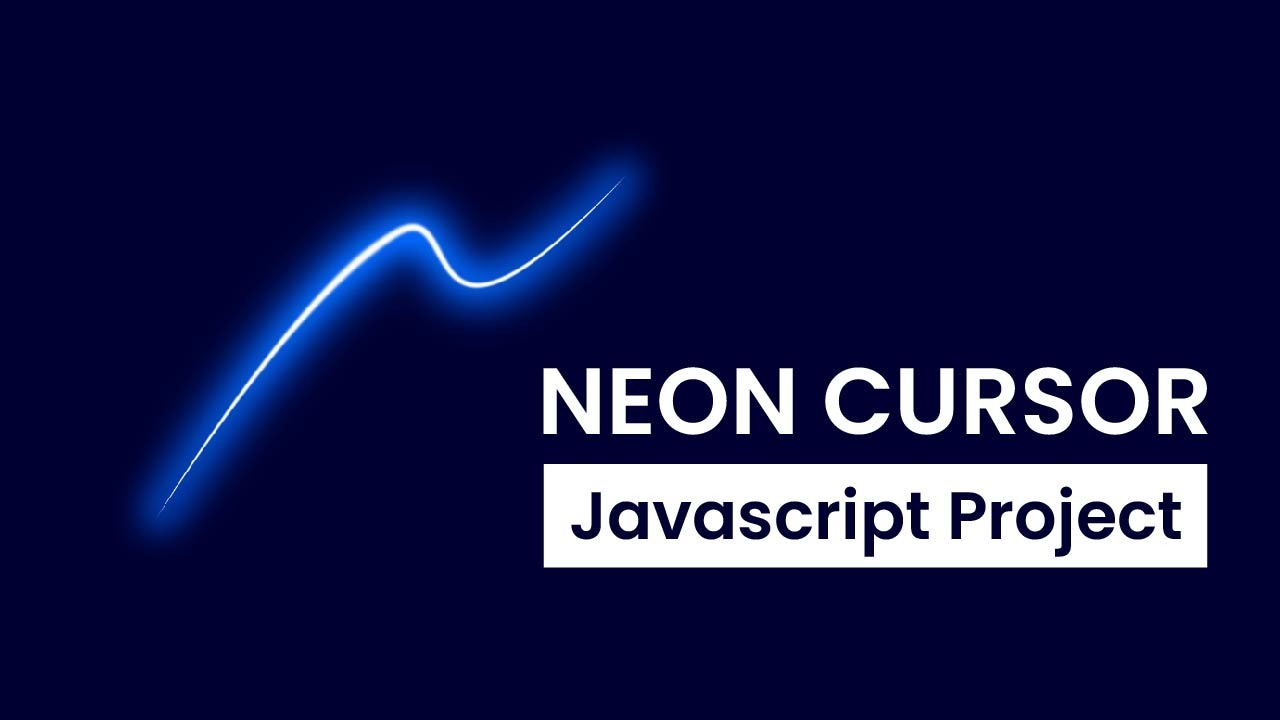
In this tutorial, we will dive into the fascinating world of canvas drawing using HTML, CSS, and JavaScript. You will learn how to create a custom neon cursor, allowing users to paint vibrant trails with their mouse movements. This project is not only a fun and engaging way to understand canvas rendering but also an excellent opportunity to enhance your skills in front-end web development.
Things You Will Learn:
- Setting up an HTML canvas element
- Utilizing the Canvas 2D context for drawing
- Managing mouse events for interactive drawing
- Creating a visually appealing trail effect
- Incorporating animation using
requestAnimationFrame
Video Tutorial:
Here is the video tutorial for this project. If you like the tutorial subscribe to my YouTube channel. I post new projects based on HTML, CSS, and Javascript on my channel regularly.
Project Folder Structure:
Now before we move on to actual coding we create a project folder structure. We name the project folder as – ”Custom Neon Cursor With Javascript”. Within this folder, we have 3 files. These files are:
- index.html
- style.css
- script.js
HTML:
We begin with the HTML code. Copy the code below and paste it into your HTML document.
<!DOCTYPE html>
<html lang="en">
  <head>
    <meta name="viewport" content="width=device-width, initial-scale=1.0" />
    <title>Neon Trail Cursor</title>
    <!-- Stylesheet -->
    <link rel="stylesheet" href="style.css" />
  </head>
  <body>
    <canvas id="canvas"></canvas>
    <!-- Script -->
    <script src="script.js"></script>
  </body>
</html>
CSS:
Next, we style our code using CSS. For this copy, the code provided to you below and paste it into your stylesheet.
body {
  margin: 0;
  overflow: hidden;
  cursor: none;
}
canvas {
  display: block;
}
JS:
Finally, we add functionality using Javascript. For this once again copy the code below and paste it into your script file.
const canvas = document.getElementById("canvas");
const ctx = canvas.getContext("2d");

canvas.width = window.innerWidth;
canvas.height = window.innerHeight;

const trailLength = 20;
const trailColor = "0,255,255"; //RGB values for cyan color
const trail = [];

function draw() {
  ctx.fillStyle = "rgba(0,0,0,0.1)";
  ctx.fillRect(0, 0, canvas.width, canvas.height);
  for (let i = 0; i < trail.length; i++) {
    const alpha = 1;
    ctx.save();
    ctx.beginPath();
    ctx.arc(trail[i].x, trail[i].y, 10, 0, Math.PI * 2);
    ctx.fillStyle = `rgba(${trailColor},${alpha})`;
    ctx.closePath();
    ctx.fill();
    ctx.restore();
  }
  window.requestAnimationFrame(draw);
}

function addTrailPoint(x, y) {
  trail.push({ x, y });
  if (trail.length > 1) {
    trail.shift();
  }
}

let mouseX = 0,
  mouseY = 0;
const startDrawing = (e) => {
  const newX = e.clientX;
  const newY = e.clientY;
  addTrailPoint(newX, newY);
  mouseX = newX;
  mouseY = newY;
};

canvas.addEventListener("mousemove", startDrawing);

window.onload = () => {
  window.requestAnimationFrame(draw);
};
Conclusion:
Congratulations! You’ve successfully created an interactive trail drawing canvas using HTML, CSS, and JavaScript. This project not only introduces you to the fundamentals of canvas rendering but also provides a solid foundation for more advanced web development projects. Experiment with different colors, sizes, and effects to customize your canvas further. Keep exploring and enhancing your front-end skills!


This tutorial is amazing. I will definitely try this type of stuff on my client site.